

Data Sources
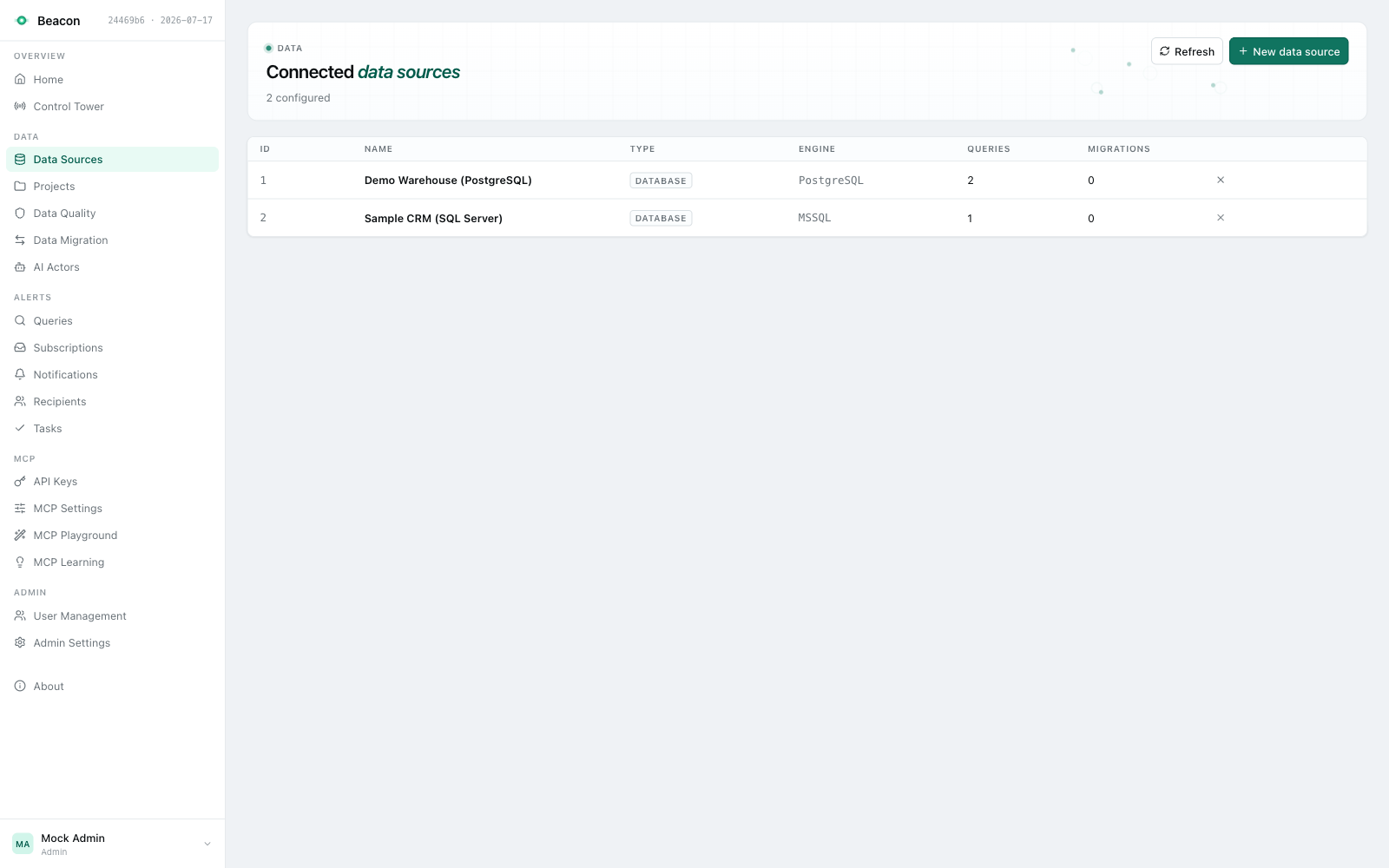
A data source is one connection Beacon reads: a database, a warehouse, a CloudWatch log set or an HTTP API. Queries, subscriptions, data contracts, MCP tools and the AI layer all reach data through data sources, and data sources are reached through the projects that link them.
Connectors
Section titled “Connectors”| Kind in the UI | Engine | What Beacon reads |
|---|---|---|
| Database | PostgreSQL, SQL Server, MySQL, Azure Synapse, Snowflake | SQL, plus tables and columns for metadata |
| AWS CloudWatch | n/a | Log groups; metadata discovers the log fields |
| Databricks | n/a | SQL against a SQL warehouse |
| BigQuery | n/a | SQL against a project |
| API (OpenAPI) | n/a | An HTTP API described by an OpenAPI spec; metadata imports its endpoints |
Each connector is a separate package the host registers (see Data-source connectors).
Connection details are encrypted at rest with AES-256 under the required Beacon:EncryptionKey and decrypted only when
Beacon connects (see Configuration).
Create a data source
Section titled “Create a data source”Creating, testing a connection for and deleting a data source are a DataSourceAdmin’s (an Admin holds the permission). See Functional permissions.
- Open Data Sources (
/beacon/data-sources) and click New data source. - Type. Pick the Data source type.
- Connection. Enter a Name and the connection details for that type (below).
- Test & save. Review the summary, pick the Projects to link the data source into, click Test connection (it shows Connected or Failed with the reason), then Create data source.
Without a project, the new data source is usable by Admins only until a project links it. Picking projects needs a Viewer or Editor role, and linking into a project needs that project’s admin role, as linking does.
Connection fields
Section titled “Connection fields”| Type | Fields (required in bold) |
|---|---|
| Database | Database engine, Connection string, and the metadata options |
| AWS CloudWatch | AWS region, Log groups (comma-separated), Access key id, Secret access key, AWS profile |
| Databricks | Host, HTTP path, Personal access token, Catalog, Schema |
| BigQuery | Project id, Dataset id, Location, Service account JSON |
| API (OpenAPI) | Base URL, OpenAPI spec URL, Authentication (None, API key, Bearer token, Basic auth), Include path patterns, Exclude path patterns |
Connection string examples for the database engines:
# PostgreSQLHost=prod-db.example.com;Database=appdb;Username=beacon_readonly;Password=...;SSL Mode=Require
# SQL Server / Azure SynapseServer=sql.example.com;Database=appdb;User Id=beacon_readonly;Password=...;Encrypt=True
# MySQLServer=mysql.example.com;Database=appdb;Uid=beacon_readonly;Pwd=...;SslMode=RequiredIf Test connection fails, check that the host can reach the server (firewall, VPN, private endpoint), that the credentials and database name are right, and that the login can read.
Manage data sources
Section titled “Manage data sources”The Data Sources list is paged on the server (20 rows per page, at most 200) and can be searched by name. Its columns are Id, Name, Type, Engine (with the read-only badge), Projects, Queries and Migrations. A user who holds DataSourceAdmin but no Viewer or Editor role can add data sources but cannot list them.
- Projects shows the projects that link the data source and that you may use, plus “+N other” for projects you cannot see (never named). “Admins only” marks a data source no project links.
- Queries counts only the queries you may read; the migration job count is shown to Admins only.
Click a row to open the data source page: type, table, column and query counts, the read-only and migration-write status, Metadata loading, the linked projects, and the schema browser. Its actions are Relationships, Refresh metadata and Delete.
There is no edit in the UI or the REST API. A host can change a data source in code with
IDataSourceService.UpdateDataSource, which also evicts its cached metadata and relationship graph.
Delete a data source
Section titled “Delete a data source”Delete (DELETE /beacon/api/data-sources/{id}) archives the data source (soft delete). It is refused while a live
query or migration job still uses it, the message names them, and a data source the host registered (a
host DbContext source) cannot be deleted.
Archiving evicts the cached metadata and relationship graph; reading or refreshing an archived data source’s metadata
answers 404. It also clears the column sample values stored for it (archived tables included), so
no copy of its rows outlives it.
Metadata loading options
Section titled “Metadata loading options”For database data sources Beacon loads tables, columns and relationships. They drive the schema browser, the SQL editor’s explorer, the save-time column check, documentation and AI grounding. The options are set when the data source is created:
| Option | Default | What it does |
|---|---|---|
| Enable metadata loading | On | Load metadata at all |
| Load table names only | Off | Skip column details |
| Max tables | 0 (unlimited) | Cap the number of tables loaded |
| Max columns / table | 0 (unlimited) | Cap the columns loaded per table |
| Exclude schemas | none | Comma-separated schemas to skip, for example information_schema, pg_catalog |
| Include schemas | all | Comma-separated schemas to load, for example public, app |
Turn loading off, or narrow it with schema filters, for very large databases (thousands of tables) and for logins that cannot read the catalog.
Refreshing metadata
Section titled “Refreshing metadata”Refresh metadata on a data source (POST /beacon/api/data-sources/{id}/refresh-metadata) re-reads its tables and
columns from the database now. It changes what every project that links the data source sees, so it needs Write in each
of them, or an Admin; a DataSourceAdmin needs Manage only where it acts (see Projects and access).
A migration write target has no refresh, because Beacon never reads it.
- Cooldown. A data source’s metadata is force-refreshed at most once per
Beacon:Metadata:ForcedRefreshCooldownMinutes(default15;0turns the cooldown off; at most1440), whoever asks (Admins and DataSourceAdmins are not held to it) and from whichever project: the cooldown belongs to the data source. A second refresh inside the cooldown, or while one is running, answers429. The cooldown counts from the last refresh that succeeded, so a failed refresh can be retried at once. It is kept in memory per Beacon process: on a host running several instances, each instance keeps its own. - Curated descriptions are kept. A table or column description set by applying a documentation patch stays; every other description is taken from the database catalog again (and cleared when the catalog has none).
- Names that cannot be quoted safely are left out. A table or column whose name carries a quote, backtick, bracket,
semicolon or control character is not stored, because Beacon builds SQL from catalog names. The refresh answers
skippedNameCount(the page says how many were left out), and the server log lists their names: control characters written as\uXXXX, at most 50 names. A table left out loses its stored description, a curated one included. - Sampling is logged per table. With sample-value collection on, each table that could not be sampled is logged by name with the reason (refused by the execution gate, failed on the data source, timed out, or a name that is not a plain identifier, never the database’s own error text), and every refresh ends with how many tables were sampled.
- Caches. The refresh replaces the cached metadata, and the relationship graph is rebuilt on its next read.
{ "Beacon": { "Metadata": { "ForcedRefreshCooldownMinutes": 15 } }}Sample values
Section titled “Sample values”A metadata refresh can store a few real values per column (up to five, each cut to 50 characters, or the full set of a short column’s values when it has at most 12) to ground text-to-SQL: they are shown to the model as examples. They are row data, so:
- Off by default, and each project’s choice. Sample-value collection (
EnableSampleValueCollection) is off for a new installation. A refresh collects while it is on in the effective settings of every live project that links the data source (the project’s own override, else the global value) so turning it on for a project is enough even while the global value is off, and one linking project that has it off keeps the source unsampled. The global value decides alone only for a data source no live project links. The deployment lockBeacon:Mcp:ForbidRowDataToLlmturns it off everywhere (see MCP Server → What reaches the LLM provider). - Columns never read. The refresh reads only the columns whose values may describe them; its sampling statement
names those columns, and a table with none is not queried. A column is left out when its name is PII (the built-in
pattern, including the banking identifiers
iban,oibandjmbgas a whole name segment:customer_iban,ClientOib,IBANNumber, but notLibanonorKibana, and account numbers such asaccount_number, or a custom PII pattern); names a person’s name (first_name,LastName,surname,customer_name, Croatianime,prezime) or Croatian personal data (adresa,telefon,mobitel,placa,stanje,broj_racuna); looks like it holds a secret (password,secret,token,api_key,private_key,credential,cookie,passcode,passphrase, a connection string,dsn,webhook_url, and the name segmentspwd,session,signature,pin,otp,salt,hash,bearer,jwtandhmac, sosession_idandrequest_hmacare left out whilepinnedorhashtagare not); has akeysegment besideapi,access,secret,private,signing,encryption,master,license,hmac,aes,rsa,pgp,gpgorssh, or is named justkey(hmac_key,EncryptionKeyandssh_keyare left out, while a surrogate key such asProductKeyorClientKeyis sampled); names a personal financial amount (salary,wage,balance,income; not abalance_typeor anincome_category); or holds binary data. Financial amounts stay unmasked in query results. - Values that drop a column’s samples. Every value read is screened whole, before it is cut to 50 characters. When
one looks like PII (an e-mail address, a card or phone number, an IBAN, OIB or JMBG with valid check digits, or a
custom pattern) or like a credential (a PEM block, a JSON Web Token, a key with a known prefix such as
sk_,AKIA,ghp_,xox…-,ATATT,AIzaorglpat-, a bcrypt, argon2 or crypt hash, a run of more than 32 hex digits, a long mixed-case base64-like run that is not a slug, SKU or path, a credential written into text such aspassword=…, or a URL with a user name and password), the column keeps none. Each refresh logs, as counts only, how many columns it left out by name, for a PII-shaped value and for a credential-shaped value. - A refresh clears what it no longer samples. The refresh replaces the stored catalog, so a column that is now left out loses the samples it held. Until then, samples stored earlier are screened again whenever they are read (with today’s name and value rules and the custom patterns of every project that links the source) and withheld if they fail.
- Who sees them. The REST metadata response (
GET /beacon/api/data-sources/{id}/metadata, and the refresh’s response) carries sample values to an Admin only, screened under the settings that apply now; every other caller gets the columns without them (the UI does not show them). Grounding reads the stored samples itself, under the settings of the asking project and the projects it shares the source with:asksends them to the LLM provider, andget_query_contextreturns them to an MCP caller with Read in the project; in both cases only while sample-value collection is on for that project and every project sharing the source, and never underBeacon:Mcp:ForbidRowDataToLlm. Both are recorded in the row-data egress log (event7123). - Archiving or a migration write target clears them. Archiving a data source (see Delete a data source) or marking it as a migration write target clears the samples stored for it, the columns of its archived tables included.
Schema relationships
Section titled “Schema relationships”Loaded metadata tells Beacon what tables exist; schema relationships tell it how to join them. Open a data source
and click Relationships (/beacon/data-sources/{id}/relationships) to review and curate them.
- Foreign key relationships come from the database’s declared constraints and are verified by default.
- Inferred relationships are proposed from column naming with a confidence score. Click Discover to preview proposals without saving, then accept the ones that are correct.
- Manual relationships are declared by hand. One is verified only when its creator may curate the data source’s shared grounding; otherwise it waits, unverified, for a curator, and a verified relationship that someone else relabels or gives another cardinality goes back to unverified.
Only verified relationships are presented to the SQL generator as authoritative join paths; unverified ones are passed separately and flagged. The page opens with a schema health panel (table and relationship counts, how many are unverified, connected groups, isolated tables and detected junction tables) which shows which parts of a schema an AI assistant cannot reach. See the Knowledge Base guide.
Projects and access
Section titled “Projects and access”A data source is reached through the projects that link it (Project access): a caller uses it only through a project they may use, and a query that reads several data sources only through one project that links all of them. Lists are filtered in the database by the same rule.
- Linking. Link data sources on create (the Projects field,
projectIdsonPOST /beacon/api/data-sources) or from a project’s page (Link data sources,POST /beacon/api/projects/{id}/data-sources), which needs that project’s admin role or Admin. Anyone but an Admin or a DataSourceAdmin may link only data sources already linked to a live open project; a DataSourceAdmin who is the project’s admin links any existing data source, and gains no membership of the projects that already link it. A data source registered by the host for a host project (a host DbContext source) links only into the project the host declares for it, for Admins too. An unreadable or missing data source answers404, a readable one that may not be linked403. Each link records who created it. - Unlinking. An Admin unlinks a data source from a project
(
DELETE /beacon/api/projects/{id}/data-sources/{dataSourceId}), or from the Access card of a project that shares it. When that was the source’s last link, the source becomes Admin-only until it is linked again; it never becomes unlinked and open. A host’s data source cannot be unlinked (409), a missing link answers404, and a concurrent change409(retry). - Unlinked data sources. Data sources that existed before project access stay reachable while no project links them
(
openWhenUnlinked). A new data source is created withopenWhenUnlinked: false: Admin-only until a project links it. WithBeacon:Authorization:RequireProjectMembershipevery unlinked data source is Admin-only. - Shared data sources. A data source linked to an open project is reachable through it by everyone with a role, even when a restricted project links it too. The project page warns Admins about such sources before they restrict a project, and lists every other project that links them.
- Shared state. Relationships, metadata description edits and a forced metadata refresh change what every linking project sees, so they need Write in every live project that links the data source, or an Admin; a DataSourceAdmin needs Write (or Manage) only in a project it acts through. Curating that state (verifying a relationship, deleting a verified one, applying or rejecting a documentation patch that writes a description) needs the project admin role in every live project that links the data source, the DataSourceAdmin permission, or an Admin (see Who curates grounding).
- Shared guardrails. A data source several live projects link runs MCP SQL, and is grounded and sampled, with the strictest guardrails among those projects (read-only enforcement, PII detection and patterns, row limits, value grounding and its probe budget, sample-value collection); an Admin sees them per source on the project page. See Guardrails of shared data sources.
- One database login per boundary. Project access decides who may run SQL through Beacon, not what the login can read. Use a login per data source that sees only what its projects should see, rather than one broad login shared by several boundaries: Beacon refuses names in another database, but a view, synonym or function in the source’s own database still reads whatever the login may.
Read-only guarantees per engine
Section titled “Read-only guarantees per engine”Every statement Beacon runs on a data source first passes its SQL checks (a regex guardrail, a read-only parser check in the engine’s dialect, the configured-database rule and a row cap; see How a query runs) and then runs on the provider’s read-only path. What that path adds at the database differs by engine, and on every engine it is defence in depth, not a replacement for the data source’s own permissions: connect every data source Beacon reads with a login that can only read.
| Engine | What the database itself does on Beacon’s read-only path | Data-source badge |
|---|---|---|
| PostgreSQL | Session default_transaction_read_only = on plus a READ ONLY transaction, and the statement is sent as a batch of exactly one command, so the driver and the server refuse a second statement: the server refuses any write. | Enforced by the engine; still use a read-only login |
| MySQL / MariaDB | SET SESSION TRANSACTION READ ONLY plus START TRANSACTION READ ONLY on a connection without statement batches, rolled back afterwards: the server refuses any write. | Enforced by the engine; still use a read-only login |
| SQL Server | No read-only session or transaction mode exists. The statement runs inside a transaction that is always rolled back, so a write the SQL checks missed is undone rather than committed, but not refused, and work outside the transaction (a sequence value, a call to another server) is not undone. A statement that ends that transaction itself fails the run: its result is discarded and the security log records ReadOnlyTransactionEnded (7116, the data source id). | Read-only login required |
| Azure Synapse | No read-only mode; dedicated and serverless pools differ in what transactions they allow, so the statement runs plainly. | Read-only login required |
| Snowflake | No read-only session (DDL commits on its own); the statement runs plainly. | Read-only login required |
| BigQuery | No read-only session; the connector also requires a dry run to report statement type SELECT. | Read-only login required |
| Databricks | No read-only session; the connector re-checks the SQL with its own parser and the configured catalog. | Read-only login required |
On every engine without a database-level guarantee, Beacon’s SQL checks are the only thing between a statement and the
data source’s own permissions, so a login (role, service account, token) that can only read is the boundary. The
list and the data source page mark such sources, and Beacon logs a warning (naming the data source by id only) when one
is saved and when the host starts, except a migration write target, which Beacon never
reads and labels as one instead. The databaseReadOnlyEnforced field of GET /beacon/api/data-sources and
GET /beacon/api/data-sources/{id} reports it: true (the engine refuses writes), false (it does not; use a
read-only login) or null (the source runs no SQL, such as CloudWatch or an API source).
A SQL Server query over memory-optimized tables runs inside that rolled-back transaction, which such tables accept only
under snapshot isolation: if it fails with error 41368, turn on MEMORY_OPTIMIZED_ELEVATE_TO_SNAPSHOT for the database.
The column sample values collected during a metadata refresh are read on the same read-only path.
Migration write targets
Section titled “Migration write targets”The one exception to read-only logins is a migration write target: a data source an Admin marked as the destination
of data migrations (data source page → Migration writes → Mark as migration write target, or
PUT /beacon/api/data-sources/{id}/migration-writes with { "allowMigrationWrites": true }; Admin only, and marking
needs Beacon:Migrations:Enabled). Return to a read source (or { "allowMigrationWrites": false }) unmarks it. Beacon never reads a write target: query steps, previews,
subscriptions, data quality, MCP tools, AI grounding, documentation and metadata scans refuse it or leave it out, and its
catalog is not offered, so its login may hold the grants a migration needs to write
(destination privileges). The list and the page label it
Migration write target instead of asking for a read-only login, and allowMigrationWrites in
GET /beacon/api/data-sources and GET /beacon/api/data-sources/{id} reports it; ?migrationTargets=true lists only
write targets, false only the sources Beacon reads.
- Only a PostgreSQL, MySQL or SQL Server database can be marked, and not a host-managed data source or one marked read-only.
- A data source that live queries, subscriptions or data contracts read is marked only when the Admin confirms it
(
"force": true): otherwise the request is refused with409naming how many of each read it, as they fail once Beacon stops reading the source. The page shows that reason and asks a second time. - Marking and unmarking are recorded in the settings history (
DataSource.{id}.AllowMigrationWrites, before and after, and who) and in the security log (MigrationWritesChanged, ids only). - Marking a data source clears the column sample values Beacon collected through its login.
- Before you return a write target to a read source, change its login back to one that can only read: from then on Beacon reads it again. The page asks for confirmation and says so.
Read-only logins
Section titled “Read-only logins”Create a dedicated read-only login for every data source Beacon reads (every one except a migration write target). On SQL Server, Azure Synapse, Snowflake, BigQuery and Databricks this is the only database-side guarantee that Beacon cannot write.
PostgreSQL:
CREATE USER beacon_readonly WITH PASSWORD 'strong-password';GRANT CONNECT ON DATABASE your_database TO beacon_readonly;GRANT USAGE ON SCHEMA public TO beacon_readonly;GRANT SELECT ON ALL TABLES IN SCHEMA public TO beacon_readonly;ALTER DEFAULT PRIVILEGES IN SCHEMA public GRANT SELECT ON TABLES TO beacon_readonly;SQL Server:
CREATE LOGIN beacon_readonly WITH PASSWORD = 'strong-password';USE your_database;CREATE USER beacon_readonly FOR LOGIN beacon_readonly;ALTER ROLE db_datareader ADD MEMBER beacon_readonly;Beacon refuses linked-server (four-part) names, and a three-part database.schema.table name unless it names the data
source’s own configured database. A synonym or view can still reach other databases the login can see, so don’t map the
Beacon login on any linked server, don’t grant it ALTER ANY LINKED SERVER, and give it access only to the databases
Beacon should read.
MySQL:
CREATE USER 'beacon_readonly'@'%' IDENTIFIED BY 'strong-password';GRANT SELECT ON your_database.* TO 'beacon_readonly'@'%';Snowflake: a role with USAGE on the warehouse, database and schemas and SELECT on the tables (no OWNERSHIP,
INSERT, UPDATE, CREATE or OPERATE), set as the user’s default role or as role= in the connection.
BigQuery: a service account with roles/bigquery.dataViewer on the datasets and roles/bigquery.jobUser on the
project, not dataEditor or admin.
Databricks: a token for a principal with USE CATALOG, USE SCHEMA and SELECT only, and CAN USE on the SQL
warehouse.
Troubleshooting
Section titled “Troubleshooting”Test connection fails. Check network reachability from the Beacon host (nc -vz db-host 5432, 1433, 3306), the
server’s remote-connection and TLS settings (self-signed certificates need Trust Server Certificate=true on PostgreSQL
or TrustServerCertificate=True on SQL Server), and the credentials.
Permission denied on a table. Check the login’s grants:
-- PostgreSQLSELECT grantee, table_schema, table_name, privilege_typeFROM information_schema.role_table_grantsWHERE grantee = 'beacon_readonly';Delete is refused. Live queries or migration jobs still use the data source; the message names them.
Refresh answers 429. The data source was refreshed within the cooldown; try again later.
Related
Section titled “Related”- Queries: run SQL against a data source
- Data Migration: copy data into a migration write target
- Knowledge Base & Grounding: what Beacon builds from this metadata
- Data-source connectors: registering connectors in the host