

Tasks
A task tracks an alert condition of one subscription over time. When a run of a subscription with task creation on returns rows, Beacon opens a task. Later runs update it, and a run that returns no rows resolves it. In between, people claim it, set its priority, snooze it and log what they find.
- One open task per subscription. Later runs update the open task instead of creating another.
- Resolves itself. A run that returns 0 rows resolves the open task.
- Context. A task links to its subscription, query, runs and notifications.
- Team workflow. Priority, assignee, watchers, snooze, an SLA indicator and an investigation log.
Notifications say that something happened; tasks track whether someone dealt with it.
Turn on task creation
Section titled “Turn on task creation”Task creation is set when you create the subscription; a subscription cannot be edited afterwards.
- In Subscriptions (
/beacon/subscriptions), click New subscription. - Tick Create a task and keep it open while the query returns rows.
- Finish and save the subscription.
With task creation on, recipients are optional: a subscription can alert through the task list alone. Without it, at least one recipient is required. See Subscriptions.
Task lifecycle
Section titled “Task lifecycle”Every run of the subscription that executes its query (scheduled or manual) updates the task, whatever the notification status of the run:
| Run result | Open task? | What happens |
|---|---|---|
| more than 0 rows | No | A new open task is created with the run’s row count. |
| more than 0 rows | Yes | The open task’s latest row count and timestamps are updated. |
| 0 rows | No | Nothing. |
| 0 rows | Yes | The task is resolved automatically. |
Automatic resolution
Section titled “Automatic resolution”When a run returns 0 rows while a task is open, Beacon resolves it at the time of the run with the note:
Auto-resolved: Query returned 0 resultsAn automatically resolved task records no resolver and keeps its assignee. It stays in the history with its note.
Resolve a task
Section titled “Resolve a task”A task is resolved by its assignee: claim it first (assign it to yourself), then resolve it. An Admin may also resolve a task that nobody is assigned to; to resolve a task assigned to someone else, an Admin first reassigns it to themselves.
- Open the task and click Resolve (or press
R). - Optionally add resolution notes (up to 2,000 characters).
- Confirm.
The task records who resolved it, when, and the notes. Resolve is offered only to those who may resolve; the server
refuses others with 403 and says to claim the task first. A resolution is never overwritten: resolving a resolved task
fails. If the condition comes back on a later run, a new task opens; a resolved task is not reopened, so each incident
keeps its own history.
What a task records
Section titled “What a task records”| Field | What it is |
|---|---|
| Latest result count | Row count of the most recent run |
| Executions | Runs of the subscription since the task was created |
| Unique counts | Distinct row counts seen since the task was created, a volatility signal |
| Notifications | Notifications sent while the task was open |
| Priority | Critical, High, Normal (default) or Low, shown as P1 to P4 |
| Assignee | The user working the task (none by default) |
| Snoozed until | While in the future, the task is snoozed |
| Watchers | Users following the task |
| Resolution | Resolved flag, time, resolving user and notes |
A task with 40 executions and 1 unique count returned the same row count every time: a stable condition. One with 40 executions and 25 unique counts changes on almost every run: a moving or growing problem.
Tasks page
Section titled “Tasks page”Open Tasks in the navigation (/beacon/tasks). The list shows only tasks of subscriptions in projects you can read.
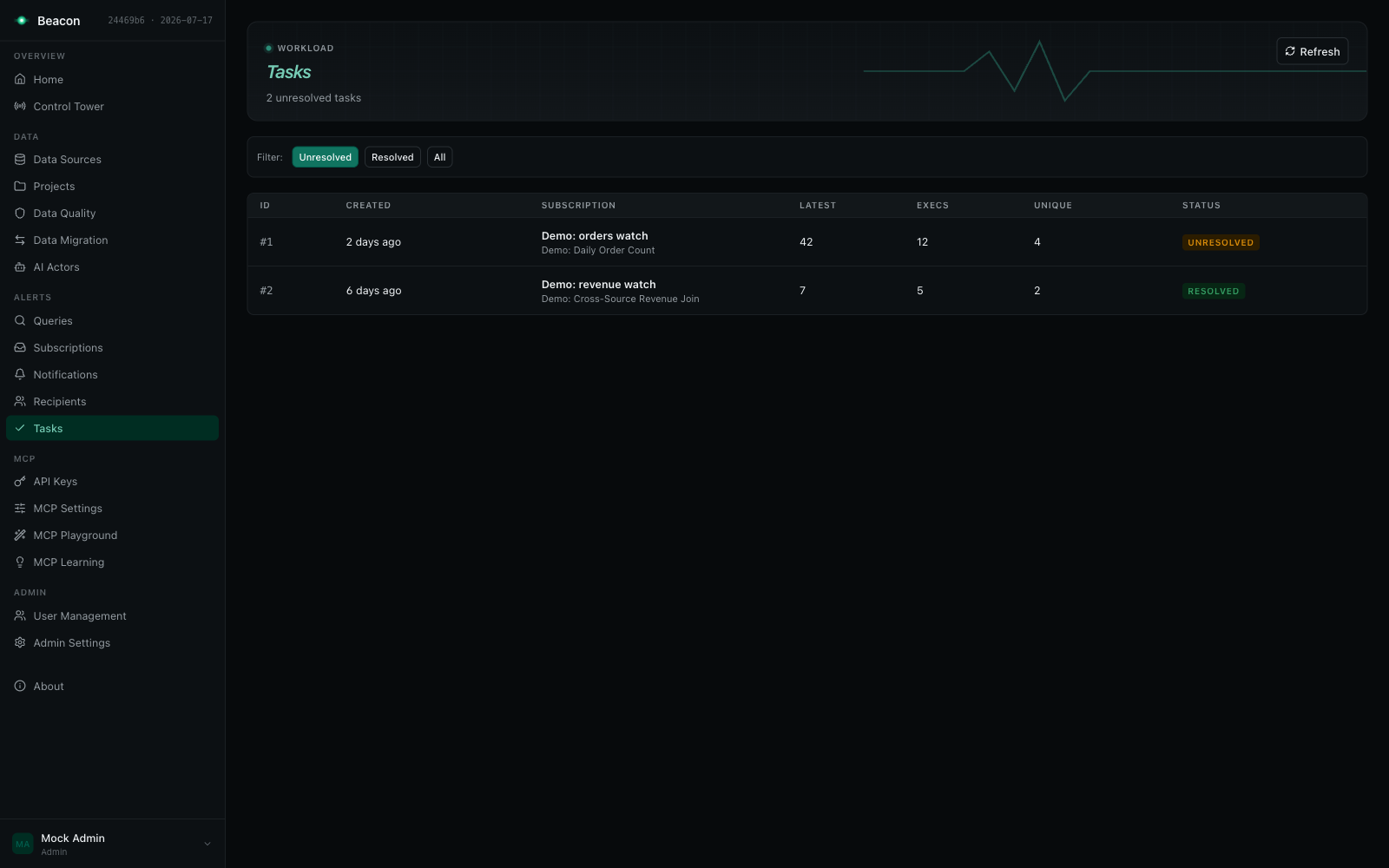
- Columns: Id, Created, Subscription (with the query name), Latest, Execs, Unique and Status (Unresolved or Resolved). Click a header to sort.
- Filter: Unresolved (default), Resolved or All.
- Paging: 20 tasks per page, on the server. Filters, sort and page are kept in the URL.
Click a row to open the task.
Task detail
Section titled “Task detail”The task page (/beacon/tasks/{id}) shows:
- Header: the task, its age and the Resolve action.
- SLA banner: time left against the subscription’s SLA hours, or 24 hours when the subscription sets none. For a resolved task it shows who resolved it and when.
- KPIs: latest row count, executions, notifications and age.
- Result trend: the row counts of the subscription’s last 100 runs.
- Tabs:
| Tab | Contents |
|---|---|
| Activity | Timeline of the task: creation, runs, comments, resolution |
| Executions | The last 50 runs of the subscription with time, duration, notification status and row count |
| Notifications | Notifications sent for the subscription while the task was open |
| Related | Up to 20 other tasks from subscriptions on the same query, archived ones included |
The result trend and the Executions tab list only runs you may read. A project-restricted API key or MCP caller sees the runs its projects may read, by the rule notifications follow.
Investigation log
Section titled “Investigation log”Every task has a comment thread. Comments record author and time, show newest first, and stay after resolution, so the next person who meets the same condition can read them (the Related tab leads there).
Assign, watch, snooze, priority
Section titled “Assign, watch, snooze, priority”| Action | Who may do it |
|---|---|
| Assign | Anyone who can edit may assign an unassigned task to themselves. The assignee may hand it over or release it. Assigning to someone else, or reassigning a task assigned to someone else, is an Admin’s. |
| Watch / Unwatch | Follow a task you are not assigned to; the watcher count shows on the task. |
| Resolve | The assignee; an Admin only while nobody is assigned. |
| Snooze | The assignee or an Admin. Not on a resolved task. |
| Priority | The assignee or an Admin. Not on a resolved task. |
With Beacon user management, the assignee must be an existing, enabled user. A host without it accepts the id its sessions present.
Resolving, assigning, snoozing and setting the priority are written only while the task still has the state the check
saw. If someone resolves or reassigns it in between, the request fails (400) and nothing is overwritten.
Keyboard shortcuts
Section titled “Keyboard shortcuts”On the task page, when you are not typing in a field:
| Key | Action |
|---|---|
R | Open the Resolve dialog |
A | Assign the task to yourself |
S | Snooze for 1 hour |
C | Focus the comment box |
How people are identified
Section titled “How people are identified”Tasks identify people by their user’s external id (Users.ExternalId), however they sign in. An API key acts as its
owner. In a host without Beacon user management, the id is the NameIdentifier the session presents. The task detail’s
assignedToCaller says whether the signed-in caller is the assignee. For a task whose subscription an AI actor manages,
the detail names the actor’s creator by display name, or as “User {id}” (hasOwner, ownerDisplayName), never by user
name or external id.
“Admin” means a user holding the Admin role; a disabled or archived user is never an Admin. To anyone but an Admin, a
task that does not exist is refused (403) like a task that is not theirs.
REST API
Section titled “REST API”Routes under /beacon/api (the paths below start at /tasks). A scoped API key needs the Execute scope for the POST routes.
| Method | Route | What it does |
|---|---|---|
GET | /tasks | List tasks. Filters subscriptionId, resolved; paging page (zero-based), pageSize (default 20, at most 200), sort (for example -id). |
GET | /tasks/{id} | Task detail. |
POST | /tasks/{id}/resolve | Resolve, with optional resolutionNotes. The resolver is the caller. |
GET | /tasks/{id}/executions | Recent runs of the task’s subscription (the runs the caller may read). |
GET | /tasks/{id}/related | Tasks from other subscriptions on the same query. |
GET | /tasks/{id}/result-history | Row counts for the trend chart (the runs the caller may read). |
GET | /tasks/{id}/comments | Comment thread. |
POST | /tasks/{id}/comments | Add a comment. |
POST | /tasks/{id}/assign | Set or clear the assignee. |
POST | /tasks/{id}/snooze | Set or clear the snooze time. |
POST | /tasks/{id}/priority | Set the priority. |
POST | /tasks/{id}/watch, /tasks/{id}/unwatch | Follow or stop following the task. |
Example: failed payments
Section titled “Example: failed payments”Subscription
- Query:
SELECT * FROM payments WHERE status = 'failed' AND created_at > NOW() - INTERVAL '1 hour' - Cron:
*/15 * * * *(every 15 minutes) - Create a task and keep it open while the query returns rows: ticked
What happens
- A run finds 12 failed payments: a task opens with latest result count 12.
- The next runs find 12, 15, 18: the same task updates; executions climb and unique counts show it is growing.
- An engineer presses
Ato claim it, sets the priority to High and logs findings. - After the payment provider recovers, a run returns 0 rows: the task resolves with
Auto-resolved: Query returned 0 results. - If failures come back next week, a new task opens, and the old one is in the Related tab.
Troubleshooting
Section titled “Troubleshooting”| Symptom | Cause |
|---|---|
| No task after the subscription ran | Task creation is off on the subscription, or the run returned 0 rows (a 0-row run never opens a task). |
| No second task while one is open | Expected: at most one open task per subscription; the open task is updated. |
| The task closed on its own | A run returned 0 rows. The resolution note reads Auto-resolved: Query returned 0 results. |
| The execution count looks low | It counts runs since the task was created, not since the subscription was created. |
| Resolve is missing | You are not the assignee. Claim the task first (A), or ask an Admin. |
Related
Section titled “Related”- Subscriptions: the scheduled queries that create tasks
- Control Tower: open task counts across subscriptions
- Notifications: deliveries of the same runs
- Anomaly Detection: alert on unusual row counts instead of fixed conditions